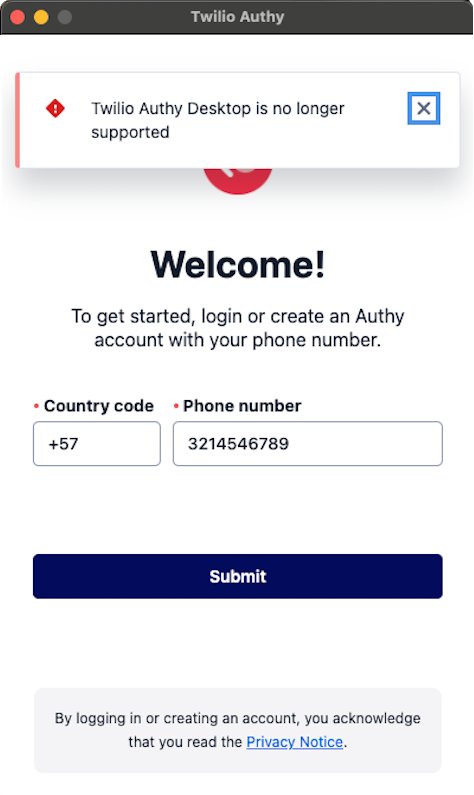
Twilio retired the Authy desktop apps for Windows, macOS and Linux on March 19, 2024, so there is no official Authy download for a desktop computer.
This page covers the supported apps that replaced it, how to keep your two-factor codes, and what to do with a desktop installation that has stopped working.
The fastest way to get your Authy codes on a computer
Authy codes now come from the phone app. You read the code there and type it into the site open on the computer.
- Open the App Store on an iPhone or iPad, or the Google Play Store on Android, and install Authy.
- Open Authy and enter the phone number your Authy account already uses.
- Approve the access request from an Authy app you are still signed in to.
- Enter your Backups password when Authy asks for it, so your saved 2FA tokens decrypt.
- Read the code on the phone and type it into the sign-in prompt on your computer.
Twilio's own download page now lists only Google Play and the Apple App Store.
Which option should you use on a Windows PC, Mac or Linux machine?
| Your situation | Use this | Why |
|---|---|---|
| Authy is still working on a phone | Authy for Android or iOS | Tokens sync down from the encrypted backup already on your account |
| Your only Authy installation was on the desktop | Authy on a phone, then re-enrol each token | The desktop installation is invalidated and its tokens cannot be exported |
| You want the codes on the computer screen itself | A password manager with a built-in authenticator | Twilio publishes no Windows, macOS or Linux build any more |
| You run Linux and have no smartphone | A desktop authenticator you can verify yourself | Authy for Linux is deprecated and is not coming back |
| You are enrolling a brand-new 2FA account | Authy on a phone, scanning the QR code | Only the mobile apps can scan a QR code with the camera |
What happened to the Authy desktop app
| Fact | Detail |
|---|---|
| End-of-life date | March 19, 2024, for the Windows, macOS and Linux apps |
| Originally scheduled | August 2024, brought forward in a Twilio changelog entry dated February 19, 2024 |
| Final desktop version | v3.0.0, which raised the key-derivation rounds used to encrypt stored seeds |
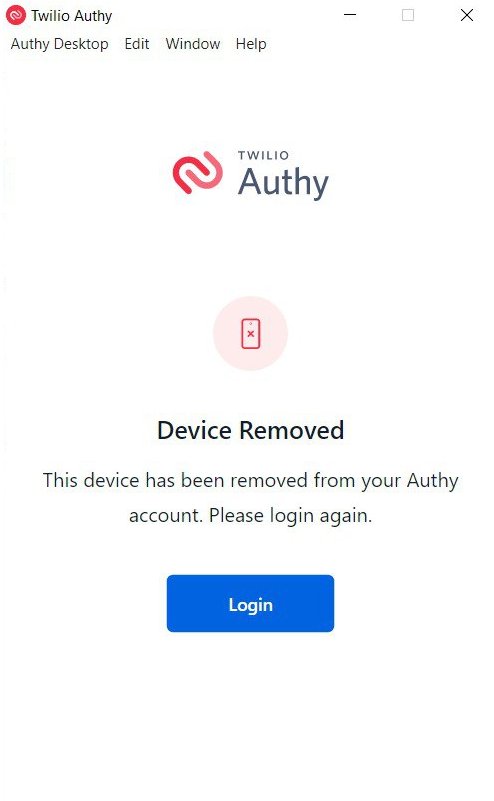
| What happens to an installation | It is invalidated, and the device is removed from your Authy account |
| Also deprecated | Authy for Chrome and the Chrome extension |
| Still supported | The Authy mobile apps, which Twilio says it maintains as a consumer 2FA application |
System Requirements for Installing Authy on Desktop
There is no desktop build left to meet requirements for, so the figures below are the ones that still apply.
| Requirement | What Authy needs now |
|---|---|
| Supported operating systems | Android 5.0 Lollipop or later; iOS and iPadOS 15.0 or later; watchOS 8 for the Apple Watch app |
| Windows, macOS and Linux | Listed by Twilio under deprecated items; no longer updated and no longer distributed |
| Hardware | Android phones and tablets, or an iPhone, iPad or iPod touch. No PC hardware requirement is published, because no PC build is published |
| Internet connection | Needed to register a device, approve a new one and sync backups. The token itself is stored on the device |
| Additional requirements | The phone number on the Authy account, plus the backups password if backups were turned on |
| Languages | English, Portuguese and Spanish |
| Compatibility checks | Twilio states that a device, language or app store it does not list is not officially supported, even where it appears to work |
Run that compatibility check before you choose the device that will hold your tokens.
Step-by-Step Guide to Set Up Authy on Windows
The old route was to visit the official Authy website, download the Windows setup file, run the installer, complete the installation, then launch Authy and set up the account. Those download links were removed at end-of-life, so nothing on the official site serves that file now.
Never take a leftover Authy setup file from a third-party download site. The signed original is gone, the copy is unverifiable, and the app it installs cannot register.
- Uninstall any Authy desktop application still present, from Settings > Apps > Installed apps.
- Install Authy on an Android phone or an iPhone and sign in with your existing phone number.
- Open Settings in the app and, on the Accounts tab, turn on Backups, then set a backups password.
- Open the sign-in page on the Windows PC and leave it waiting at the two-factor prompt.
- Read the code from Authy on the phone and type it into that prompt.
Step-by-Step Guide to Set Up Authy on macOS
The macOS application shipped as a disk image you would open and install, then launch Authy and set up your account. That build is deprecated and the download is gone.
- Drag any old Authy app from Applications to the Trash if an invalidated copy is still installed.
- Install Authy on an iPhone or iPad from the App Store.
- Enter the phone number on your Authy account and approve the request from another signed-in Authy app.
- Enter the backups password so the synced tokens decrypt.
- Sign in to one account from the Mac using a code from the phone to confirm the move.
Setting Up Authy on Desktop After Installation
After installation, two settings decide whether you can ever recover these tokens: Backups and Allow Multi-device.
- On Android, tap the … menu and select Settings. On iOS, tap Settings in the upper right corner.
- On the Accounts tab, turn on Backups (shown as Backup Password on iOS) and enter the password twice.
- Write that password down somewhere safe. Twilio never sends or stores it, so it cannot be recovered for you.
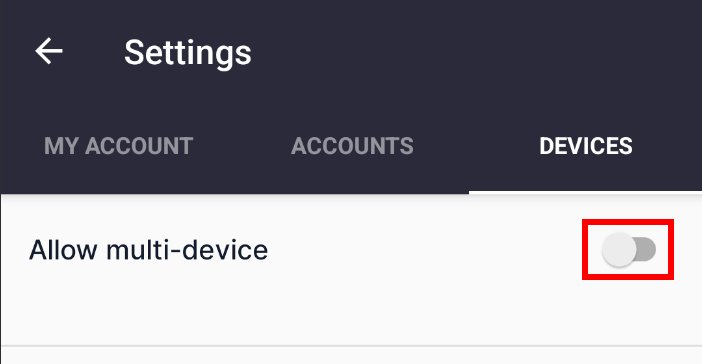
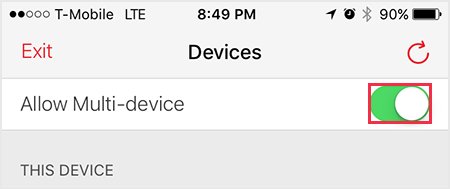
- Open the Devices tab and turn on Allow Multi-device.
- Install Authy on a second device, enter the same phone number, and approve the request from the first device.
- Return to the Devices tab and turn Allow Multi-device off once the second device is registered.
Twilio recommends running Authy on two devices, so a lost or reset phone never locks you out.
How to move your tokens to another authenticator
Authy has no export feature, so a token cannot be copied out of the app. Each account has to be re-enrolled on the site that issued it.
- List every account that currently uses Authy for two-factor authentication.
- Sign in to the first account on your computer and open its security settings.
- Turn two-factor authentication off for that account, then turn it straight back on.
- Scan the new QR code with the authenticator you are moving to, or type the key in by hand.
- Save the recovery codes the site offers before you close the page.
- Confirm a code from the new app signs you in, then repeat for the next account.
Start with the accounts you cannot afford to lose. If your GitHub account uses two-factor authentication, re-enrol it early so you can keep signing in from GitHub Desktop, and do the same for the Docker Hub account behind Docker Desktop.
How to check it worked
- Open Settings > Devices in the Authy app and confirm the phone is listed as This Device.
- Check that every token you expect is present, and that none carries the status Not backed up.
- Sign in to one protected account from the computer using a code read off the phone.
- Confirm the sign-in completes before you remove any old device from the account.
Additional Features of the Authy Application
| Feature | What it does now |
|---|---|
| Multi-device sync | Syncs the account and its 2FA tokens across trusted devices. Backups must be on for tokens to sync |
| Secure cloud backup | Encrypts tokens with a key derived from your backups password before anything leaves the device |
| Offline mode | Codes are generated on the device from the stored token. A connection is only needed to register, approve or sync |
| Device management | Settings > Devices lists every registered device; tap one, then tap Remove device to revoke it |
| Quick copy of codes | Each token shows its current code on a tile, ready to read or copy into the prompt on your computer |
Comparison Between Authy Mobile App and Desktop Version
| Point | Authy mobile app | Authy desktop version |
|---|---|---|
| Platform compatibility | Android 5.0 or later, iOS and iPadOS 15.0 or later | Windows, macOS and Linux, all deprecated on March 19, 2024 |
| Setup and accessibility | Installed from the App Store or Google Play; QR codes scan with the camera | Installed from a downloaded file; could not scan QR codes, so keys were typed by hand |
| Features and user experience | Backups, multi-device, device management, all still maintained | Frozen at v3.0.0 and no longer updated |
| Security considerations | Supported and patched by Twilio | An installation left on a computer is invalidated and removed from the account |
Security Considerations When Using Authy on Desktop
| Area | What to do |
|---|---|
| Device security | Keep a lock screen on the phone that now holds your tokens, and keep the computer's own sign-in locked |
| Application security | Remove the Authy desktop application from any computer. It can no longer register, and an abandoned 2FA app on a shared machine is a liability |
| Network security | Approve a new device only on a network you control, and never approve a request you did not start |
| Backup and recovery | The backups password never reaches Twilio's servers. Without it, synced tokens cannot be decrypted, so store it apart from the phone |
Troubleshooting Common Installation Issues When Downloading Authy on Desktop
**No Internet Connection** appears although the network is fine
The app has fallen out of sync with its device registration, which Twilio lists as a de-registration symptom.
- Confirm another app on the same network reaches the internet.
- Sign in to Authy on a second device using the same phone number.
- Open Settings > Devices and remove the out-of-sync device.
- Reinstall Authy on that device and approve it again.
The phone shows none of the tokens that were on the desktop app
Backups were never turned on, so nothing was ever encrypted and uploaded for another device to pull down.
- Accept that those tokens cannot be recovered from the dead installation; Authy has no export feature.
- Sign in to each affected website and turn two-factor authentication off, then on again.
- Add the new key to Authy on the phone by scanning its QR code.
- Turn Backups on before you enrol anything else.
Download Failures
The desktop installer is nowhere on the official site
Twilio removed the Windows, macOS and Linux downloads at end-of-life on March 19, 2024.
- Open Twilio's Authy download page and note that only Google Play and the Apple App Store are listed.
- Install Authy on a phone or tablet from one of those two stores.
- Ignore any site offering an Authy setup file, however official it looks.
Compatibility Issues
An old installer will not run on Windows 11 or a current macOS
The last desktop build is v3.0.0, released before end-of-life, and receives no compatibility updates.
- Uninstall the Authy desktop application rather than trying to force the installer.
- Install Authy on a phone from the official store.
- Approve that phone from an Authy app already registered to your account.
Installation Errors
An error appears on the Authy registration screen after installation
The desktop installation has been invalidated and the device removed from your Authy account.
- Stop trying to re-register the desktop application. Registration for it is closed.
- Install Authy on a phone and sign in with the same phone number.
- Enter the backups password so your tokens decrypt on the new device.
Post-Installation Problems
A token shows **Not backed up**, or you see **Device not found**
That Authy installation has been de-registered and is out of sync with your account.
- Install Authy on another device and sign in with the same phone number.
- Check which tokens are missing there; they are the ones marked Not backed up on the old installation.
- Sign in to each of those websites and temporarily turn two-factor authentication off.
- On the new installation, remove every device except the one marked This Device.
- Re-add those 2FA accounts to Authy.
- Turn Allow Multi-device on, then uninstall and reinstall Authy on the original device.
FAQs About Downloading and Using Authy on Desktop
How can I download Authy on my desktop?
You cannot. Twilio retired the Authy desktop apps for Windows, macOS and Linux on March 19, 2024, and the official download page now lists only the Apple App Store and Google Play. Install Authy on a phone or tablet instead.
Does Authy have a desktop app?
Not any more. The Windows, macOS and Linux apps reached end-of-life on March 19, 2024, and Twilio lists them as deprecated items alongside Authy for Chrome. Only the mobile apps are supported and updated.
Can I still install Authy on a desktop computer?
No supported installer exists. An old setup file may still run, but the installation is invalidated and the device is removed from your Authy account, so it cannot keep generating codes.
Is Authy available for Linux?
No. Authy for Linux sits on Twilio's deprecated list and reached end-of-life with the Windows and macOS builds on March 19, 2024. Linux users need the mobile app, or a different desktop authenticator they can verify.
Can I use Authy on multiple desktops?
No. Multi-device now covers phones and tablets only. Turn on Backups and Allow Multi-device in the app's settings, register a second phone or tablet, then turn Multi-device off again for safety.
What are the system requirements for installing Authy on desktop?
There are none to meet, because no desktop build is published. The supported requirements are Android 5.0 Lollipop or later, or iOS and iPadOS 15.0 or later, with watchOS 8 covering the Apple Watch app.
Is it safe to download Authy from third-party sources?
No, it is not safe. A third-party copy of the setup file is unverifiable, and the app it installs cannot register anyway. The Apple App Store and Google Play are the only official sources Twilio publishes.
What should I do if I encounter issues during installation?
Switch devices rather than troubleshooting. Errors during a desktop installation are expected now that registration is closed. Install Authy on a phone, sign in with the same phone number, and enter your backups password.
How do I get access to Authy if my only installation was on the desktop?
Install Authy on a phone using the same phone number. Tokens that were backed up sync down once you enter the backups password. Anything marked Not backed up has to be re-enrolled on each website.
What is Authy desktop?
Authy desktop was Twilio's standalone two-factor app for Windows, macOS and Linux. It could not scan QR codes, so keys were entered by hand. Its final version was v3.0.0 and it is no longer supported.
How do I get Authy on a PC without a phone?
You cannot run Authy itself. Twilio's guidance is to pick an alternative desktop authenticator, while noting it has no affiliation with those products. Choose one you can verify, then re-enrol each account on it.
Bottom line
Install Authy on a phone or tablet, and stop looking for a desktop download. Twilio ended the Windows, macOS and Linux apps on March 19, 2024, invalidated their installations, and keeps only the mobile apps supported. Anything offering an Authy desktop installer today is not coming from Twilio.


![How to Fix 100% Disk Usage issue on Windows 10 or 11 [18 Ways]](https://techdows.com/wp-content/uploads/2026/09/Windows-11-Delivery-Optimization-settings-with-Allow-downloads-from-other-device-600x338.jpg)